
Interaction to Next Paint (INP) simply tells you how quickly a website responds to a user when he clicks or taps. If the user gets the response instantly that means INP score is good. If the page opens slowly then INP score is poor.
First you need to understand what is about INP and how to improve it. So, that your website can rank at the top on search engine. If you don’t your page may slow, then rank lower in search results.
In this article, we will explain you more details of INP. Also, we well tell how it is different from the other Core Web vitals metrics. And, how can you measure it to improve your current score.
What Is Interaction to Next Paint (INP)? Meaning
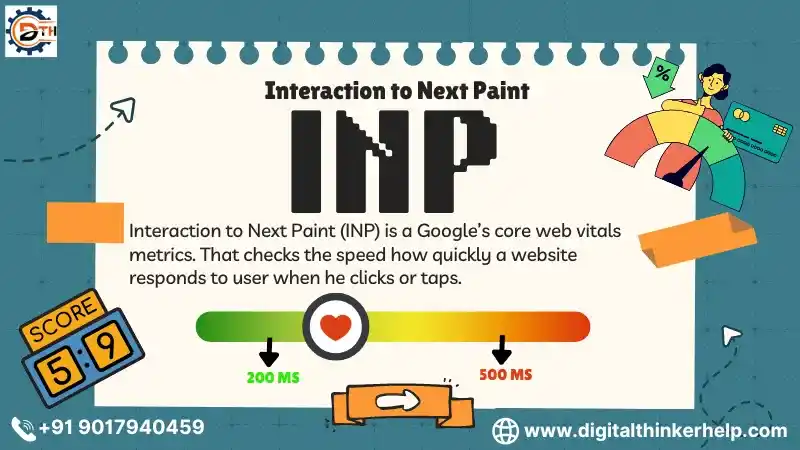
Interaction to Next Paint (INP) is a new core web vitals metrics of Google’s. That checks the speed how quickly a website responds to user when he clicks or taps.
Also Read: What is Largest Contentful Paint (LCP)? How to Improve it
It is particularly measures the how much time passes between a user clicks, taps or presses a key and the website shows a visible response. This helps to understand how fast and smoothly a website reacts on a user’s action.
The main key point of INP is to measures how much good response of the page during the time user visit on it, not just the click or tap. This makes it more efficient than the First Input Delay (FID) that is only measures the delay in first input processing.
INP is especially important for pages that users are interact with for a longer time. Like single-page applications where it gives a better representation of the overall user experience (UX).
What Is a Good INP Score?
According to Google’s web performance guidelines:
A Good INP Score Is: the website respond fast when a user clicks, taps or press any key.
A Bad INP Score Is: when the website responds very slow or stuck after you interact with it.
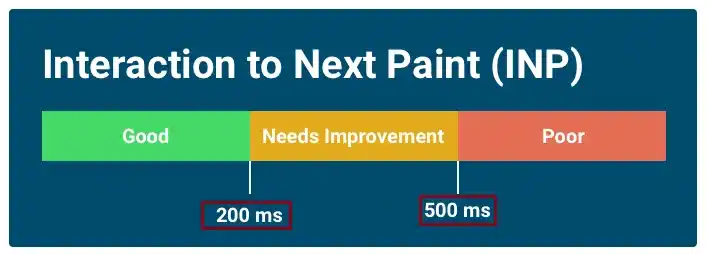
When the site responds within the INP of 200 milliseconds or less it means the site is fast and smooth to use.
An INP between 200 ms to 500 ms means the site is little slow and needs the improvement.
If the INP is more than 500 ms that means the site is very slow and frustrate the user and then impact negatively on experience of user.
A website having the INP under 200 ms make it feels instant and helps to contribute positively ranking in the Google search engine.
How to Optimize Interaction to Next Paint?
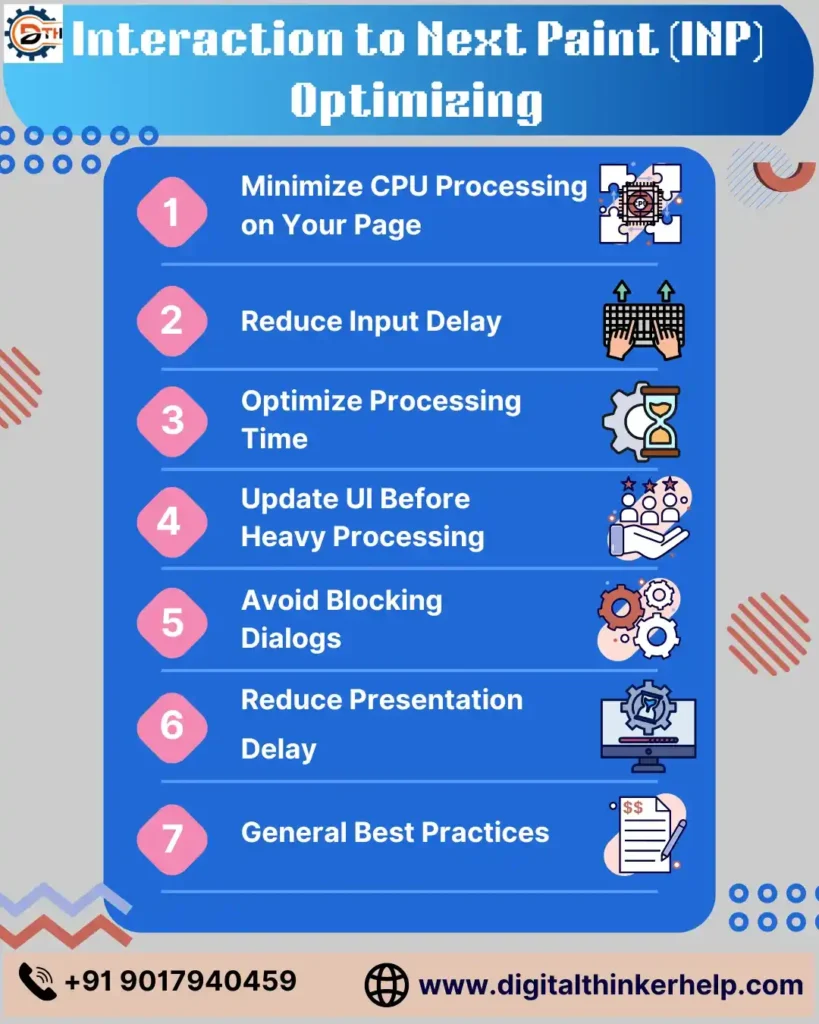
There are below some easy ways to optimizing Interaction to Next Paint is the main key to improve a website’s respond and user experience (UX).
1) Minimize CPU Processing on Web Page
Asynchronous code execution: The user will get an immediate UI update if the Asynchronous code is used. So, the page updates right away while the other tasks are going on in the background.
Also Read: What is Service Schema? Examples & How to Add It
Profile Website Code: check the website using the tools like DevTools to find the slow parts of website and make them faster.
Review Third-Party Scripts: Fix or adjust the third party scripts if needed that are slowing your website.
2) Decrease Input Delay
Break up main thread tasks: break up heavy tasks in to small parts of background CPU activities to reduce the input delay.
Total Blocking Time (TBT) Metric: Use the TBT metric to find the background activity that makes the site slow.
Optimize third-party code: if your site is slow due to third party scripts. You should try to make them lighter or load them only when they needed.
3) Well Optimize Processing Time
Efficient code execution: Find the parts where the browser took most of the time and fix them to make it faster.
Avoid unnecessary renders: Make sure the components are not load unnecessarily in frameworks like React.
Layout work reduction: Find the ways to reduce layouts and repaints so the site can run faster.
4) Update UI Before Heavy Processing
Immediate feedback: If the site is working before a heavy task use a visual feedback like a spinner.
Use web workers: Use the web workers to run heavy tasks like JavaScript processing.
5) Always Ignore Blocking Dialogs
Non-blocking UI elements: Use native alert, confirm and prompt dialogs so the site does not freeze.
6) Decrease Presentation Delay
Simplify page updates: First of all show the important content to users that make the site faster if the rendering page content is slow.
Manage queued interactions: Manage the queued interactions carefully so the user interactions do not get delayed.
7) General Best Practices
Monitor Performance Regularly: You should keep checking the performance of site using the tools like Google PageSpeed insights, Lighthouse and real user monitoring (RUM) solutions.
Stay up to Date with CWVs: Continuously check the changes in core web vitals metrics and adjust them on your site to make it faster.
What Causes Poor INP Web Vital?
Big JavaScript files usually make the files slow to respond. Sometimes CSS or DOM also can be the reason of responding the site slow.
INP is related to Long Animation Frames (LoAF), which also track freezes in user interactivity.
1) Long Running Event Handlers
Event handlers also can slow the page and increase INP times in result. If they do too much work, then this makes the page feels less responsive. You can make it faster by removing extra work from event handlers. Some work can be done after the page has updated instead of doing it immediately.
2) Long Running JavaScript
When a page finishes loading pages, then it can be feels slow due to all JavaScript runs on the main thread. Any heavy running optimized code blocks the browser from responding to clicks and taps. Frameworks like React and Angular can worsen this if they are cause of excessive re-rendering.
3) Heavy Upfront JavaScript Payloads
Large JavaScript bundles take the browser longer to load and run. They must wait for the page to load all referenced JavaScript; when the inputs during page load are delayed. Big bundles often come from unused code or too many third party dependencies. As reducing the unnecessary scripts helps to make the site respond faster.
FAQs (Frequently Asked Questions)
What is the Difference between FID and INP?
FID measures the how long the page takes to respond the very first time you interact. INP measures overall how responsive the page during all your interaction not just the first one.
What are Metric of Interaction to Next Paint (INP)?
INP measures all the interactions of the user like clicks, taps and typing. It checks the time until the page updates visually. The long time of interaction shows how responsive the page really feels give the clear picture of user experience.
How to Test Interaction to Next Paint (INP) Web Vitals?
You can check INP using tools like Chrome DevTools, PageSpeed Insights, Lighthouse, CrUX or the Web Vitals library. These tools track how long interactions take and report the slowest one and showing how responsive the page feels for real users.
Wrapping Up
INP is an important Core Web Vitals metric that shows how responsive a page is. Fixing INP issues helps make interactions smoother and improving the user experience. This is especially important for sites where users interact a lot like e-commerce, social media or gaming websites.
Also Read: What is Product Schema? Examples & Types | How to Add
A low INP score means the website responds quickly and giving users a smooth experience. This can boost engagement, conversions and satisfaction. Since Google uses Core Web Vitals including INP for search rankings and improving it can also help the site rank higher and succeed online.